
Most people type one line into a voice tool, hit generate, and get a voice that sounds fine but a little flat. Then they stop there. The part they skip is the fun part: voice design, where you describe the exact voice you want and the tool builds it for you.
What makes this guide different from the rest: every voice below was actually generated with VoxCPM2, and you can play each one right here on the page. You are not reading a description of what a voice might sound like. You hear the real output, then copy the exact prompt that made it.
It works like a recipe book. Each voice comes with a description you can paste, a sample script, the real audio, and a short note on what to listen for. Everything runs in your browser, and VoxCPM2 free covers personal and paid work. Open the VoxCPM2 voice design tool and follow along.
Three ways to make a voice (quick version)
Before the recipes, here is the lay of the land. VoxCPM2 AI gives you three ways to get a voice, and you pick based on what you have.
Voice Design. You describe a voice in words. No recording needed. This is what most of this guide is about.
Cloning. You upload a short clip and the tool speaks in that voice.
Plain TTS. You skip the description and use a built-in voice.
This article focuses on Voice Design, because it has the most room to play and the least help out there.Every recipe below ships with its real, playable sample, so you can hear the difference before you copy a single word.We will cover cloning briefly near the end.
The voice design formula
Here is the whole trick to writing a description that works. Think of three parts, in this order:
Who they are + How they speak + How they feel.
Who they are: age and gender. "A young man," "a woman in her 40s," "an elderly grandfather."
How they speak: pace and texture. "Slow and clear," "fast and bright," "deep and smooth."
How they feel: the mood. "Warm and friendly," "serious," "excited."
Put it in parentheses at the very start of your text, then write what you want spoken. That is it. A description like "(a calm woman in her 30s, slow and gentle, warm)" already gives the tool everything it needs.
A quick word on order: keep the description first and the script after. If you bury the description in the middle, the tool can miss it. These are the kind of voxcpm2 voice design control instruction examples that take five seconds to write and change the whole result.
Two habits keep your descriptions clean:
Three or four words beat ten. A short, clear description lands better than a long pile of adjectives that fight each other.
Change one word at a time. If a voice is close but not right, swap a single word and listen, so you learn what each one does.
Weak description vs strong description
The fastest way to learn the formula is to see it fix a bad prompt. Here are three weak descriptions and the small change that makes each one work.
Weak: "(a nice voice)" → Strong: "(a warm woman in her 30s, calm and clear)". The weak one gives the tool nothing to anchor on, so it picks at random. The strong one sets age, gender, and mood.
Weak: "(a deep, gravelly, booming, powerful, intense, dramatic male voice)" → Strong: "(a deep man, slow and serious)". Six adjectives fight each other. Two or three clear ones win.
Weak: "Welcome to the show (an excited host)" → Strong: "(an excited host, fast and bright) Welcome to the show". Same words, but the description has to come first or the tool may read it as part of the script.
The pattern is always the same: anchor the basics, keep it short, and put the description first. Get those three right and most prompts behave.
Voice design recipes you can copy
Now the good part. Each recipe below has a description you can paste, a short sample script to test it, and one tweak to try. Steal them, change them, make them yours.
1. The calm audiobook narrator
Description:
a warm man in his 50s, slow and steady, gentle and clear
Sample script: "The house at the end of the lane had been empty for years. On the morning our story begins, a light appeared in the upstairs window for the first time."
What I heard: On our take, the slow pace gives every line room to breathe, which is what keeps a long passage easy to follow. The "gentle" stops it sounding stern. If a documentary needs more weight, that is exactly where the "deep" swap earns its place.
Tweak: swap "gentle" for "deep" if you want a heavier, more serious read.
This voice is good for long-form: audiobooks, sleep stories, documentary narration. The slow pace keeps it easy to listen to over many minutes.
2. The high-energy YouTuber
Description:
an excited young man, fast and bright, upbeat and friendly
Sample script: "Okay, you need to see this. I tried five free voice tools this week, and one of them completely surprised me. Stick around, because the last one is the one I actually kept."
What I heard: Our clip puts the energy in the first second, which is the whole job of an intro, and "fast and bright" carries most of it. If a take ever rushes into slurring, ease "fast" to "quick" and it cleans up.
Tweak: add "slightly breathless" for that real, run-on creator energy.
Great for intros, ads, trailers, and social clips where the voice needs to grab attention in the first two seconds.
3. The soothing meditation guide
Description:
a soft woman, very slow, calm and soothing, almost whispering.
Sample script: "Let your shoulders drop. Take one slow breath in, and a longer breath out. There is nowhere you need to be right now."
What I heard: The near-whisper plus the very slow pace is what makes our take feel calming instead of flat. Watch the pauses: when they start to drag, the "slow" swap tightens things without losing the mood.
Tweak: if it feels too sleepy, change "very slow" to "slow" so it does not drag.
Perfect for wellness apps, guided meditation, and calm explainers.
4. Two game characters in one scene
You can build a whole cast this way. Here are two that play off each other.
The villain. Description:
an elderly man, slow and low, cold and menacing.
Script: "You came a long way to lose. I almost admire it. Almost.
What I heard: The low pitch and slow pace make our villain feel in control rather than loud. The menace comes from restraint, not volume.
The nervous sidekick. Description:
a young man, fast and high, nervous and jumpy
Script: "Okay okay okay, new plan. We run. Running is a plan, right? Tell me running is a plan."
What I heard: The high, fast read sells the panic, and the gap between the two voices is what makes the scene land. If it feels flat, push them further apart.
Tweak: push the villain's pace even slower and the sidekick's even faster to widen the contrast.
Indie game makers use this to fill a cast without hiring actors. Design once, reuse the voice across every line. You can do the same for animation, ads, and skits.
5. The on-brand ad voice
Description:
a confident woman in her 30s, smooth and clear, friendly but polished.
Sample script: "Meet the planner that actually fits your week. No clutter, no learning curve. Just open it and go."
What I heard: Our take sounds polished without going cold, which is the sweet spot for a brand read, and "smooth and clear" does the work. The "premium" swap noticeably lowers and slows it for high-end products.
Tweak: swap "friendly" for "premium" if the product is high-end.
Use it for product promos, explainers, and brand intros where the voice carries the whole feel.
6. The clear explainer / teacher
Description:
a friendly teacher in her 30s, clear and steady, patient and encouraging.
Sample script: "Let's take this one step at a time. First we set up the basics, and once that clicks, the rest is easy. Ready? Here we go."
What I heard: The steady pace is what makes our explainer feel patient, not rushed. It is the most forgiving voice in the set, which is why it doubles as a safe default.
Tweak: swap "encouraging" for "neutral" for a more textbook, no-nonsense read.
This one is great for tutorials, online courses, how-to videos, and product walkthroughs, where the voice needs to feel helpful and never rushed. It is also a safe default when you are not sure what tone a piece needs, since clear and patient fits almost any teaching content.
A small note: save the descriptions you love in a notes file. Over time you build a personal library of voices you can drop into any project, which is faster than reinventing them each time.
The voice design word bank
When you get stuck for the right word, scan this. Pick one from each row you care about and drop it into your description. You do not need a word from every row, just the ones that matter for your voice.
Part of the voice | Words to try |
|---|---|
Age | young, in their 20s, in her 30s, middle-aged, older, elderly |
Gender | male, female |
Pitch | deep, low, mid, high, bright |
Pace | very slow, slow, steady, quick, fast |
Texture | warm, smooth, soft, breathy, raspy, crisp, rich |
Mood | calm, friendly, cheerful, excited, serious, gentle, confident, sad, tense |
Accent | neutral, light British, light American, soft French, slight Spanish |
A simple way to build any voice: one age word, one gender word, one pace word, and one mood word. That four-word base covers most needs, and you add texture or accent only when it matters.
Match the voice to where it goes
The right voice depends on where the clip will live. Here is a quick map from platform to a description that tends to work.
YouTube intro: (an excited host, fast and bright, friendly). Energy in the first two seconds keeps people watching.
TikTok or Reels: (a casual young voice, quick and upbeat). Short, punchy, and natural beats polished here.
Audiobook or sleep story: (a warm narrator, slow and steady, gentle). Easy to listen to over long stretches.
Product ad: (a confident voice, smooth and clear, polished). The voice carries the brand feel.
Course or tutorial: (a patient teacher, clear and steady, encouraging). Helpful without rushing.
Phone line or assistant: (a calm, neutral voice, clear and friendly). Easy to understand on small speakers.
Start from the closest match, then tweak one word to fit your own style.
Adding emotion and pace
The description sets the base voice. To steer feeling on specific lines, drop a short cue in parentheses right where you want the change. The voice stays the same; only the delivery shifts.
Examples to copy:
"(slightly faster, cheerful) Great news, the update is live!"
"(softer, a little sad) I wasn't sure you'd come back."
"(slow and firm) Read this part carefully. It matters."
A few rules that keep emotion clean:
One feeling per clip. Switching from happy to furious mid-sentence rarely sounds right. Split it into two generations.
Match the words. A cheerful cue over a gloomy sentence reads as off. Let the cue and the words agree.
Go light first. Start with a gentle cue, listen, then push it stronger only if you need to.
Mixing languages and accents
VoxCPM2 handles 30 languages and can blend them in one line. You can also ask for a light accent. Keep accents subtle and keep each language chunk a few words long so the voice can settle.
Examples:
"(a friendly host, light Spanish accent) Welcome everyone, y gracias for being here."
"(British English, polished) Right then, shall we begin?"
"(American, casual) Hey, so here's the deal."
One tip: test names and brand words on their own first. Foreign names can trip up any voice tool, so it helps to hear them before you commit to a full script.
Step-by-step tutorial: blank page to finished file
Here is the full flow on the site. Most clips take under a minute from start to download.
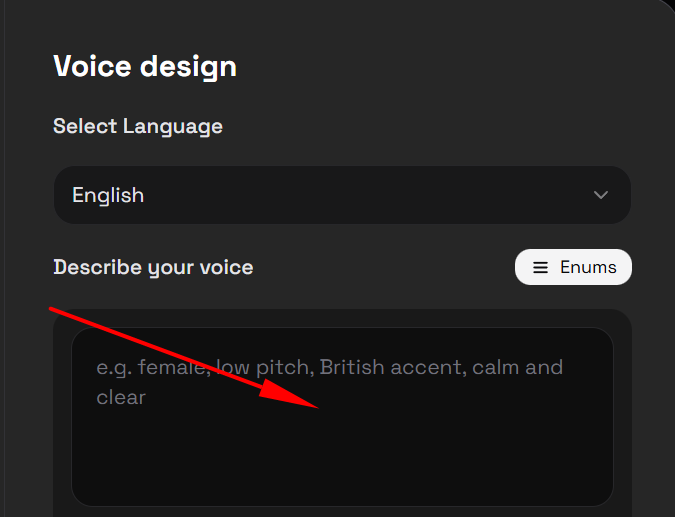
Step 1 — Pick how the voice should sound. To design a new voice, type your description in parentheses at the start of the text box. To clone instead, upload a 5-to-10 second clip. To use a default, leave it blank.
Step 2 — Paste your script. Type or paste what you want spoken, from one line to a long passage. Drop inline cues like "(slower, warmer)" wherever you want the delivery to shift. The tool detects the language on its own, so you do not tag it.
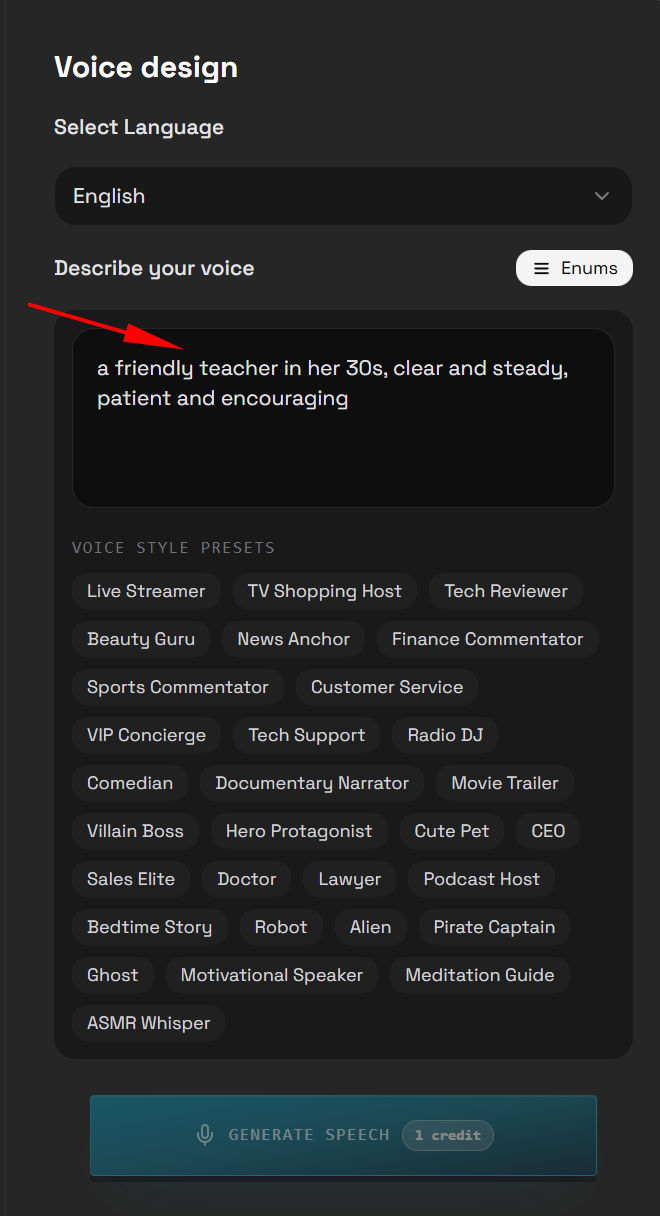
Step 3 — Generate and listen. Press generate and play the result. If it is close, you are nearly done. If not, change one thing and run it again.

Step 4 — Refine, then download. Tweak a word in the description, adjust a cue, or shorten a sentence until it lands. Then download the file. It comes out at clean 48kHz, ready to drop into a video, podcast, or game.
A practical habit: get the voice right on one short sentence first. Once it sounds the way you want, run the full script through the same description. That saves you from re-generating a long passage over and over while you are still tuning.
A quick cloning guide
Voice Design is the focus here, but cloning deserves a short mention because people often mix up the two modes. You can read the deeper version on the voice cloning page; here is the short version.
There are two cloning paths. Regular cloning takes a short reference clip and speaks your text in that voice. Ultimate cloning also takes the exact transcript of the clip, then continues from it to keep the small details like rhythm and breath. That second path is your voxcpm2 ultimate cloning mode guide in one line: clean clip in, exact transcript in, faithful voice out.
To get a clean clone, prep your source clip:
Use 5 to 10 seconds, one speaker, no music.
Trim silence and pops at the start and end.
For ultimate mode, type the transcript word for word, including punctuation.
Only clone voices you have permission to use, and label AI audio.
How VoxCPM2 compares on design and control
Plenty of tools make speech. Far fewer let you shape it the way Voice Design does. The table below focuses on design and control features, not generic specs, so you can see where the real differences sit. Features are on the left. (Figures for open models are practical estimates.)
Design / control feature | VoxCPM2 | ElevenLabs | OpenAI TTS | F5-TTS | XTTS v2 |
|---|---|---|---|---|---|
Design a voice from a text description | ✅ | ✅ | ❌ | ❌ | ❌ |
Inline emotion / pace cues in the text | ✅ | ⚠️ | ⚠️ | ❌ | ❌ |
Clone from a 5-second clip | ✅ | ✅ | ❌ | ✅ | ✅ |
Transcript-guided cloning mode | ✅ | ⚠️ | ❌ | ⚠️ | ❌ |
Mixed languages in one line | ✅ | ⚠️ | ⚠️ | ❌ | ⚠️ |
48kHz studio output | ✅ | ✅ | ❌ | ❌ | ❌ |
Free to use | ✅ | ❌ | ❌ | ✅ | ✅ |
Use online, no setup | ✅ | ✅ | ✅ | ⚠️ | ⚠️ |
Commercial use, no subscription | ✅ | ❌ | ❌ | ✅ | ⚠️ |
The short read: most tools can clone, and a couple can design a voice, but the mix of text-based design, inline emotion cues, a transcript-guided clone, and clean 48kHz output in one free tool is rare. That mix is what makes VoxCPM2 AI handy for hands-on voice work, not just plain narration.
Fixing the chirp and click noise
If you have used voice tools before, you know the tiny "tick" or "chirp" that can show up at the very start or end of a clip. It is a common artifact across speech models. The good news is the voxcpm2 fixed chirp click sound issue is mostly handled by the newer audio engine, which builds smoother 48kHz audio with fewer hard edges. A few habits clear up whatever is left.
Why it happens: clicks usually come from a sharp cut in the audio at the very edge of the clip.
Quick fixes, in order:
Add a little padding. Start and end your text with a short natural word or a comma, so the audio has room to settle before and after the main line.
Clean your reference clip. In cloning, a noisy or clipped upload passes its problems into the output. Trim and de-pop the source first.
Let sentences finish. Cutting text off mid-word creates a hard edge at the end. Give it a full stop.
Ease off extreme cues. Very strong emotion cues can roughen the edges. Dial them back a notch.
Add a soft fade. In any editor, a 5-to-10 millisecond fade in and out hides a leftover edge instantly.
Most people fix it with the first one or two steps. The tool does the heavy lifting; you just give it a clean start and stop.
Pro tips and common mistakes
A few things that make every clip better:
Build a prompt library. Save the voices you like so you never rewrite them.
Tune on a short line, then scale up. Lock the voice first, run the long script second.
Keep descriptions short. Three or four clear words beat a long, fighting pile.
Use cues sparingly. A cue on the lines that matter reads better than a cue on every line.
Read your script out loud. If it sounds natural when you say it, it will sound natural when the tool says it.
And the mistakes to avoid:
Burying the description in the middle of the text instead of the start.
Stacking ten adjectives and wondering why the voice is unpredictable.
Switching emotions inside one sentence.
Cloning from a noisy clip and blaming the output.
Troubleshooting: why your voice sounds off
When a result is not right, the cause is usually one small thing. Find your symptom below and try the fix first.
Symptom | Likely cause | Quick fix |
|---|---|---|
Voice sounds flat or robotic | No mood word in the description | Add a feeling, like "warm" or "excited" |
Wrong age or gender | No age or gender anchor | Add "young," "elderly," "male," or "female" |
Voice changes between tries | Description is too vague | Add one or two clear anchors so it is less random |
Pace feels rushed or draggy | No pace word, or the wrong one | Set "slow," "steady," or "fast" on purpose |
Emotion ignored on a line | Cue placed after the line | Put the cue in parentheses just before the line |
Description shows up as spoken text | Description not at the start | Move it to the very front, in parentheses |
A click or tick at the edges | Hard cut at the start or end | See the noise fix in the next section |
The habit that prevents most of these: build your description from clear anchors (age, gender, pace, mood) instead of a pile of loose adjectives.
FAQ: voice design
Do I need a reference recording to design a voice?
No. That is the point of Voice Design. You describe the voice in words and the tool builds it, no clip needed.
How detailed should my description be?
Cover three things: who they are, how they speak, and how they feel. Three or four clear words is usually enough. More than that often makes the voice less predictable, not more.
Can I make the same designed voice say many lines?
Yes. Reuse the exact same description across every line or script, and the voice stays consistent. Save it so you can reuse it across projects too.
How do I change just the emotion on one line?
Add a short cue in parentheses right before that line, like "(softer, sad)". The base voice stays; only the delivery changes.
Is voice design really free?
Yes, VoxCPM2 AI free use covers personal and commercial work, and you design voices right in the browser with no setup.
My designed voice sounds flat. What is wrong?
Usually the description is missing the "how they feel" part. Add a mood word like "warm," "excited," or "serious," and it comes alive.
Can I make a voice sound older or younger?
Yes. Age is one of the strongest anchors. Use "young," "in their 20s," "middle-aged," or "elderly," and the tool shifts the whole voice to match.
Why does the voice change a little each time I generate?
Voice design has some natural variation between runs. To keep it steadier, add one or two clear anchors so the tool has less to guess. If you find a take you love, reuse that exact description for every line.
Can I design a child's voice?
You can ask for a "young" or "child-like" voice for things like animation or games. Keep it for clearly fictional, age-appropriate content, and avoid anything that imitates a real, identifiable minor.
How do I keep one voice across a long video?
Write your description once and reuse the exact same wording on every clip or line. Same description in means the same voice out, which keeps a long project consistent.
Is this better for narration or for character voices?
Both. The same formula handles a calm narrator and a wild cartoon villain. You just change the anchor words: pace and mood do most of the work.
Final thoughts
Voice design is the difference between a voice that reads your text and a voice that fits your project. The formula is simple: who they are, how they speak, how they feel. Start from a recipe above, change one word at a time, and save the ones you love.
You can do all of this for free, in your browser, with output clean enough to ship.And every voice on this page was generated with the tool itself, not described from the outside, so what you hear is what you get. The more you practice the little formula, the faster you get, until describing a voice feels as natural as describing a character to a friend. So open the tool and